Install & Activate

✈️ Got a trip coming up?

We'll show you how to get set up in minutes — no tech skills needed.

How to Install an eSIM

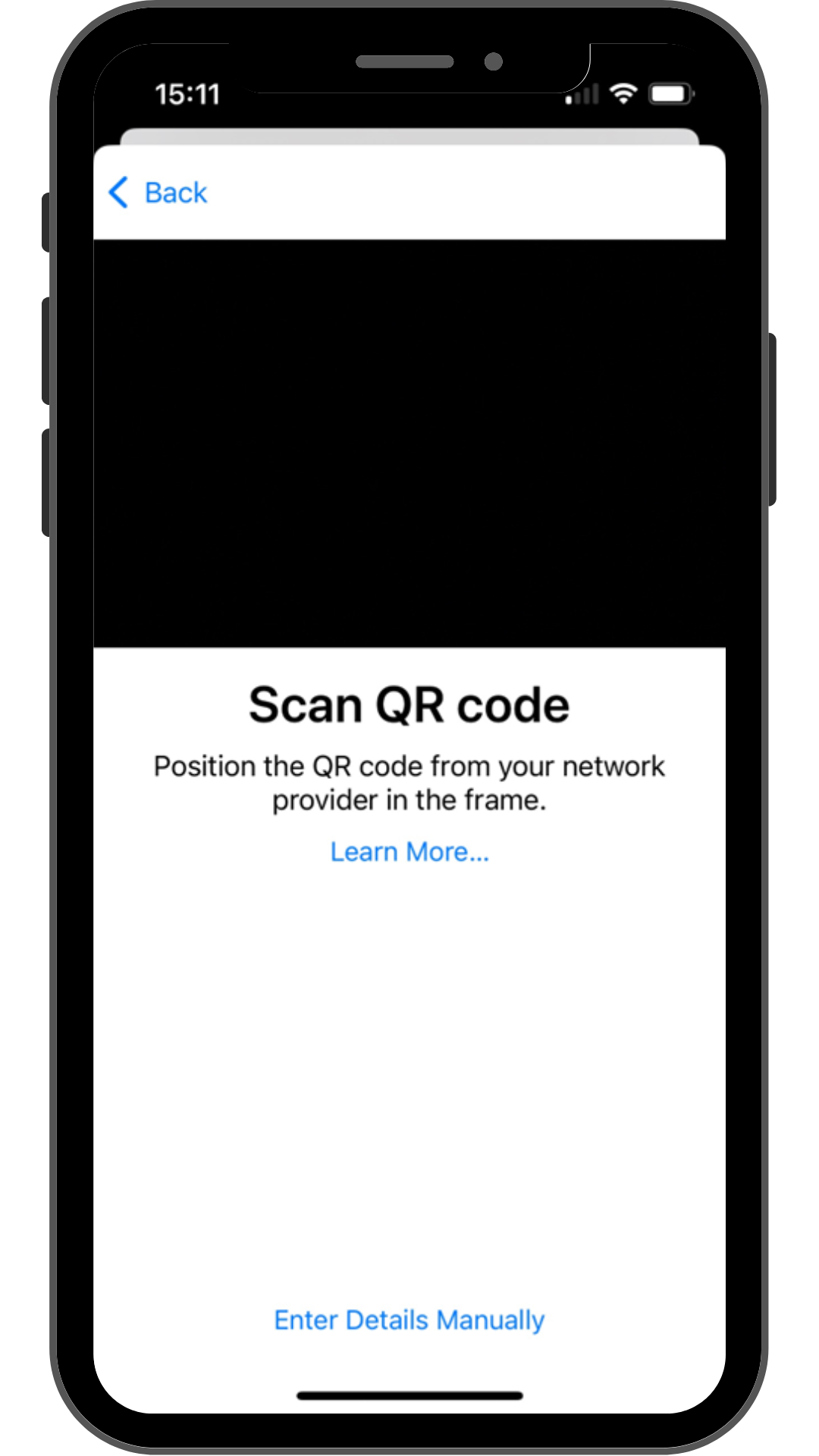
iPhone screen displaying QR code scanner for XeSIM setup with option to enter details manually for eSIM activation

1/4

Unlock your phone and scan the QR Code you received by email. Make sure you have a stable internet connection.

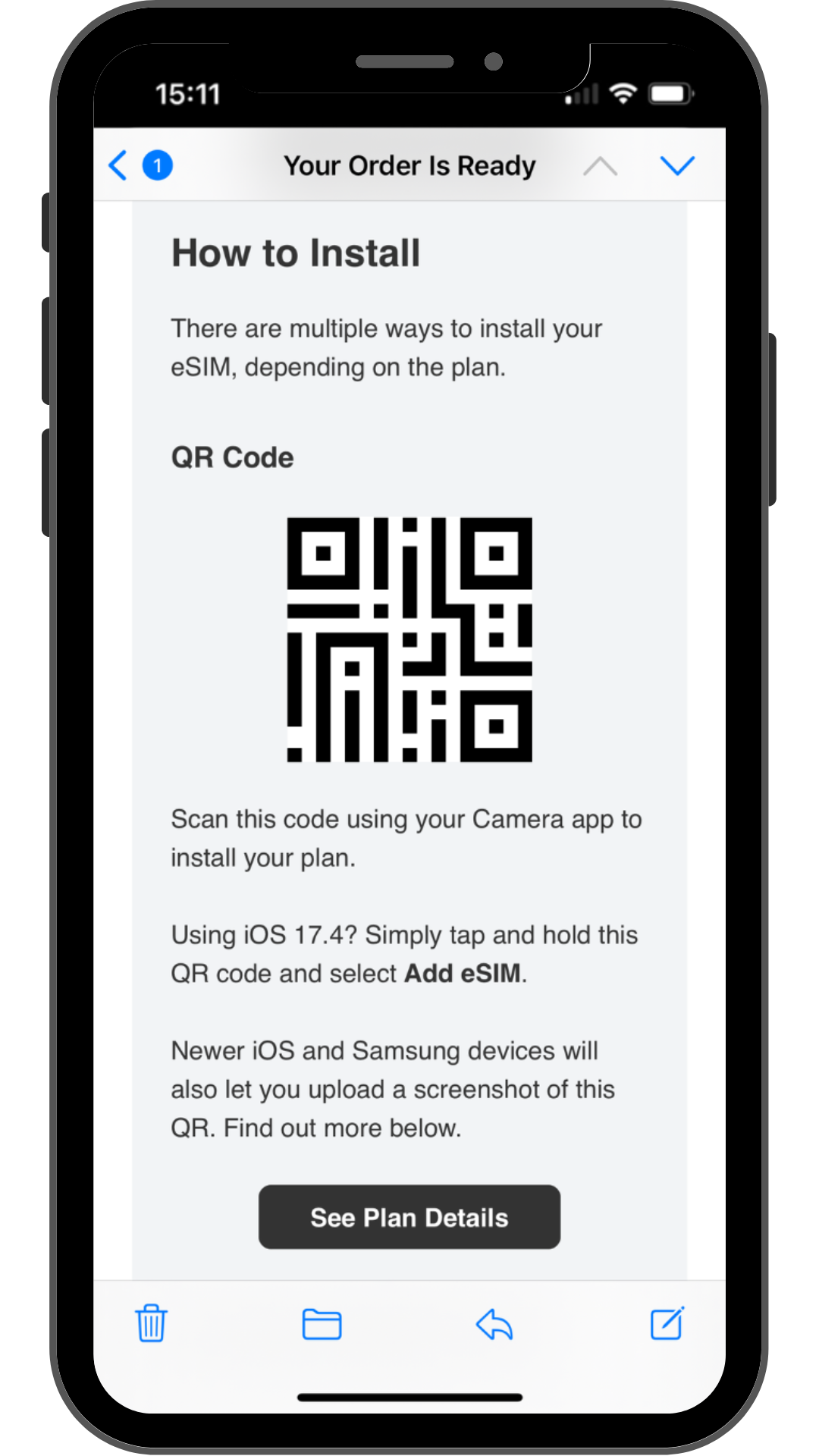
A iPhone screen displaying an email titled "Your Order Is Ready" with instructions on how to install an eSIM. The section titled "How to Install" explains that there are multiple ways to install the eSIM. A QR code is shown in the center, and the instructions mention using the camera app to scan it, or tapping and holding it on iOS 17.4 to select "Add eSIM". It also notes that newer iOS and Samsung devices allow uploading a screenshot of the QR code. A black button labeled "See Plan Details" is at the bottom.

2/4

If you are using iOS 17.4 or newer you can tap and hold the QR code and tap 'add eSIM' to install on your iPhone

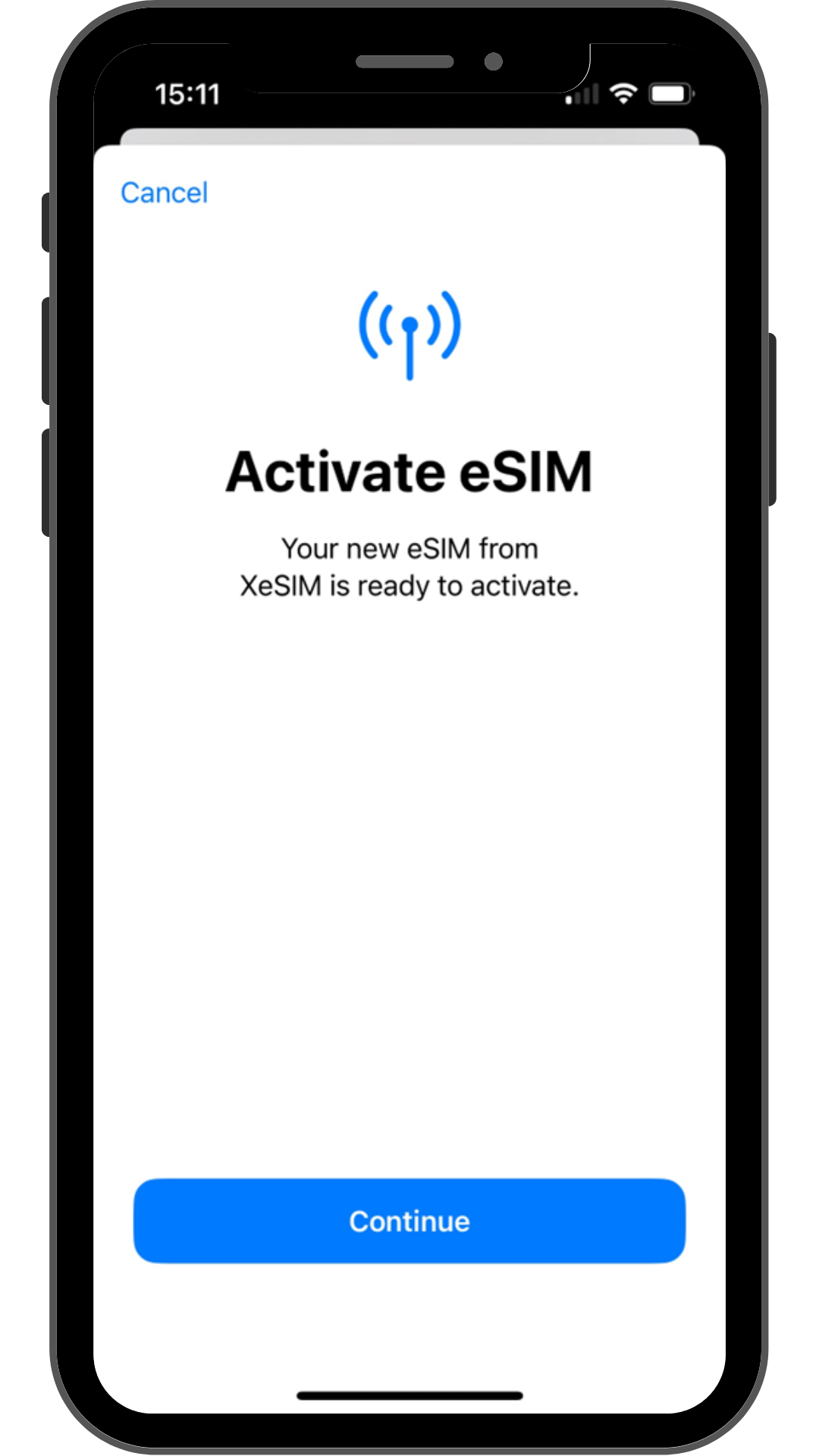
Smartphone screen displaying XeSIM ready to activate, highlighting fast eSIM setup for global mobile connectivity.

3/4

Follow the installation flow on your device.

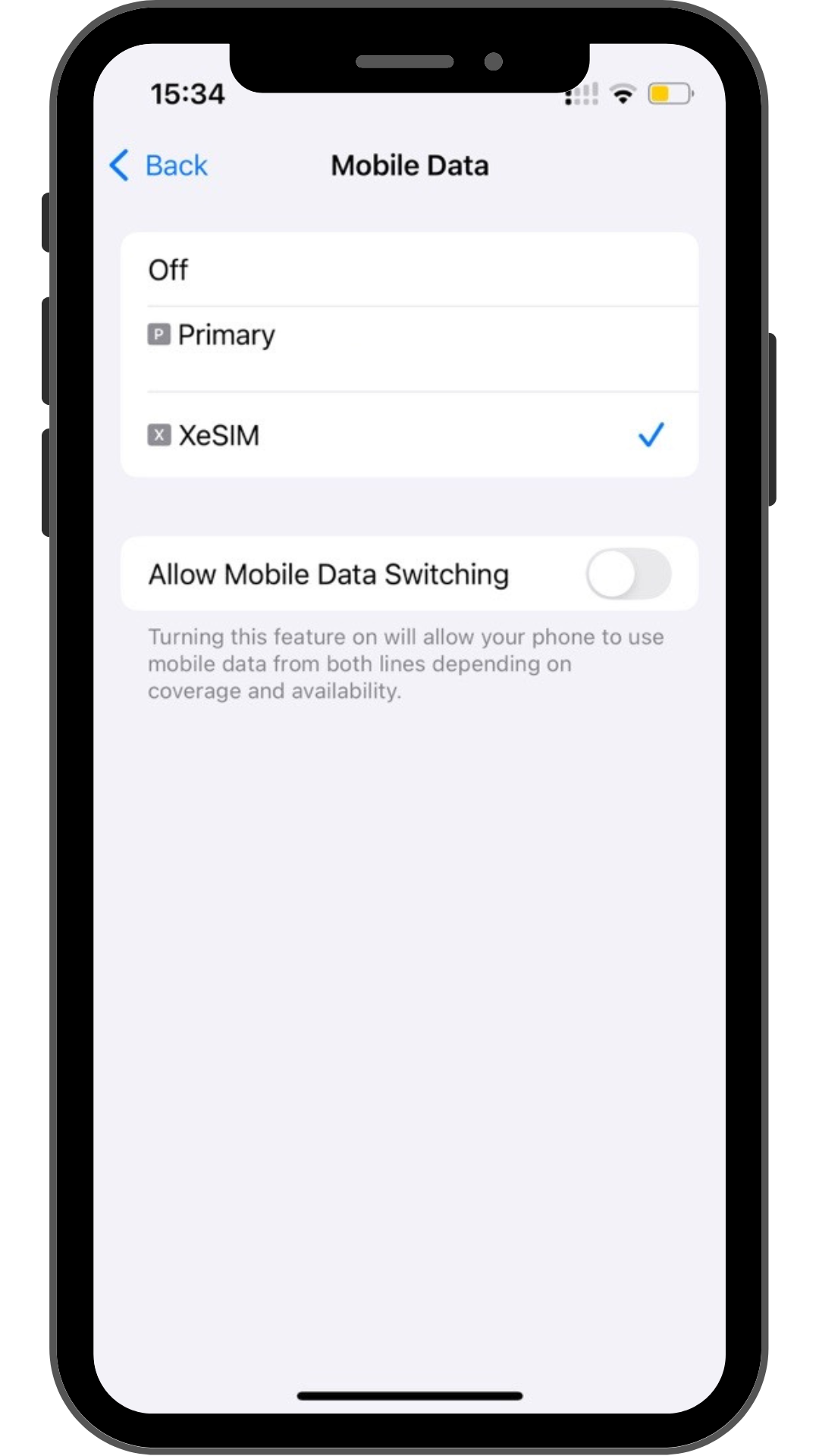
iPhone screen displaying Mobile Data settings with XeSIM selected and data switching option turned off for dual SIM use.

4/4

Make sure you select your new eSIM for Mobile data and make sure data roaming is turned on

How to activate an eSIM?

Payment Methods

Stripe Logo
Google Pay Logo
Apple Pay Logo
PayPal Logo

FAQ